
The fastest way to convert HEIC to JPG on a Mac is Preview: open the photo, choose File → Export, set Format to JPEG, and click Save. To convert many photos at once, use a Quick Action in Finder or a free browser-based converter that doesn’t upload your files.
Last updated: October 20, 2026
In this article: Which method to use · Preview · Quick Action · Photos app · Browser converter · Terminal · Many photos · Troubleshooting · FAQ
Why does your Mac have HEIC photos?
iPhones have saved photos as HEIC by default since iOS 11, because HEIC takes roughly half the space of a JPG. Your Mac can open HEIC files, but many websites, upload forms, print services, Windows PCs, and older apps can’t. Converting to JPG gives you a photo that opens almost anywhere.
Which method should you use?
| Method | Best for | How many photos | Install anything? |
|---|---|---|---|
| Preview | One or a few photos | One at a time | No |
| Finder Quick Action | A folder of photos | Many | No |
| Photos app | Photos already in your library | Many | No |
| Browser converter | Many photos, plus control over quality, size, and location data | Up to 50 per batch | No |
| Terminal (sips) | Power users and scripts | Many | No |
Method 1: Convert HEIC to JPG with Preview
Preview comes with every Mac, so this is the quickest option for a single photo.
-
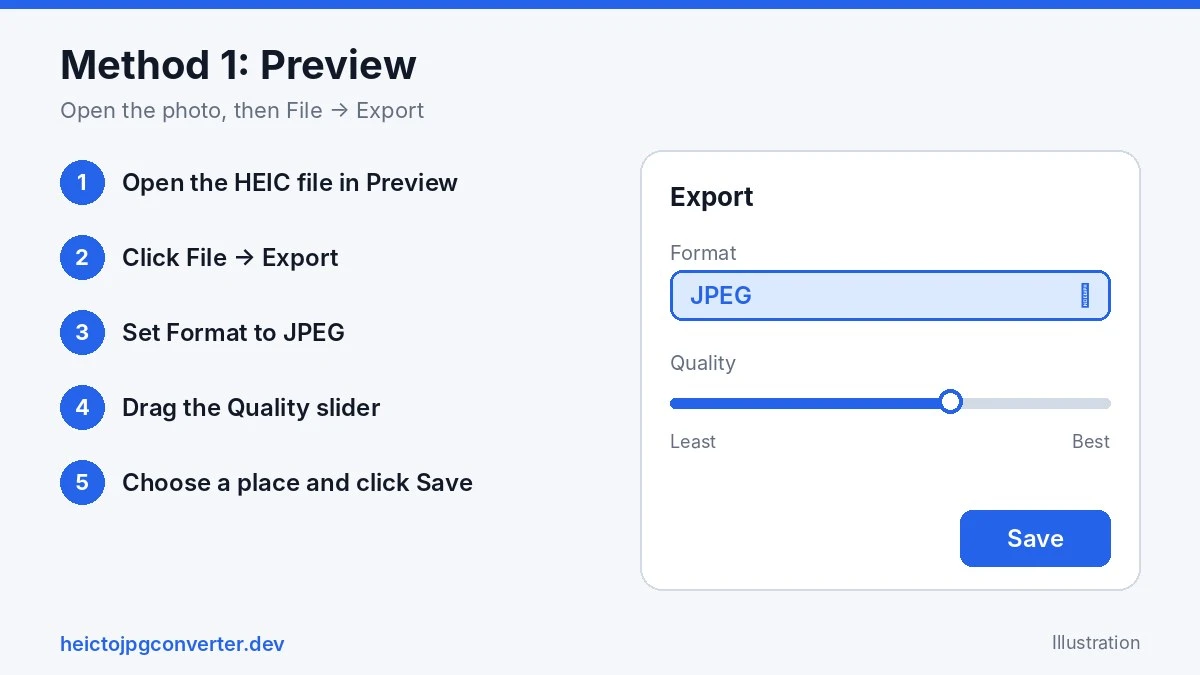
- Double-click the HEIC file to open it in Preview. If another app opens, Control-click the file and choose Open With → Preview.
-
- In the menu bar, click File → Export.
-
- Open the Format menu and choose JPEG.
-
- Drag the Quality slider. Further right means better quality and a bigger file.
-
- Choose where to save the file, then click Save.
Several photos in Preview: open them together, select the thumbnails in the sidebar (Command + A), then choose File → Export Selected Images and pick JPEG.
Method 2: Use the Finder Quick Action
Recent versions of macOS can convert files straight from Finder, which is handy for a whole folder.
-
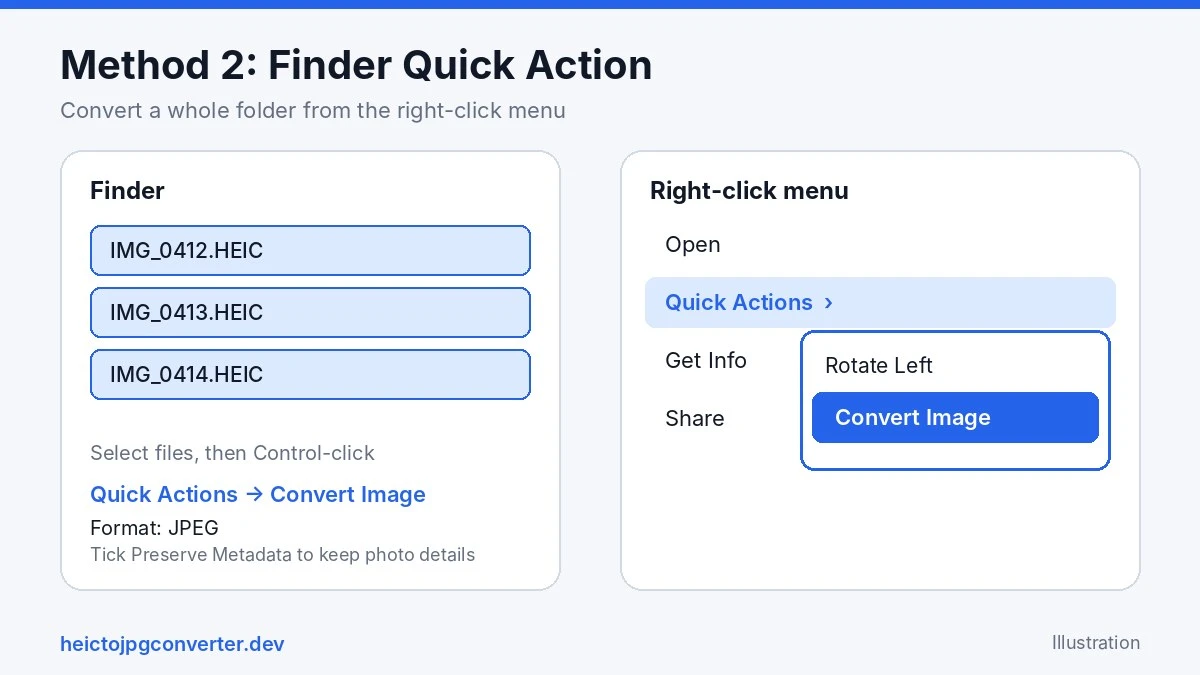
- In Finder, select one or more HEIC files.
-
- Control-click the selection and choose Quick Actions → Convert Image.
-
- Set Format to JPEG.
-
- Pick an Image Size (Small, Medium, Large, or Actual Size). Tick Preserve Metadata if you want to keep the photo’s details.
-
- Click Convert. The new JPG files appear next to the originals.
Method 3: Export JPGs from the Photos app
If your HEIC photos are already in your Photos library, you can export them as JPGs without leaving the app.
-
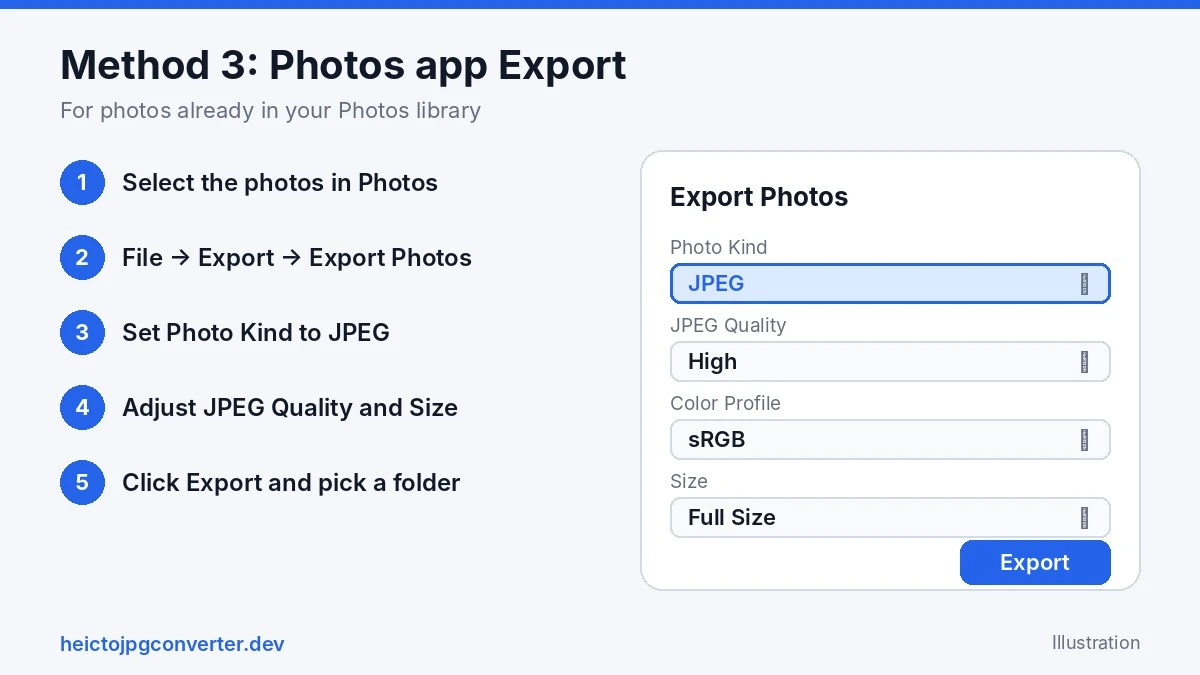
- Open Photos and select one or more photos.
-
- Click File → Export → Export [number] Photos.
-
- Set Photo Kind to JPEG, then adjust JPEG Quality and Size if you like.
-
- Click Export, choose a folder, and click Export again.
Method 4: Use a free browser converter (no upload)
A browser converter is the easiest way to convert many photos at once, and it gives you more control than the built-in tools. Our HEIC to JPG converter runs entirely in Safari, Chrome, or Firefox on your Mac. Your photos are converted on your device and never uploaded.
-
- Open the HEIC to JPG converter and drag your HEIC files in from Finder, or click Choose files. You can add up to 50 photos per batch, up to 50 MB each.
-
- Keep JPG selected and set the Quality slider (the default is 90%).
-
- Choose Photo info (EXIF): Remove all (default), Keep, no GPS, or Keep all. Keeping photo info works with JPG output only.
-
- Optionally shrink the Size to 50%, 25%, or a custom width and height.
-
- Press Start conversion. Download each JPG, or press Download all as ZIP.
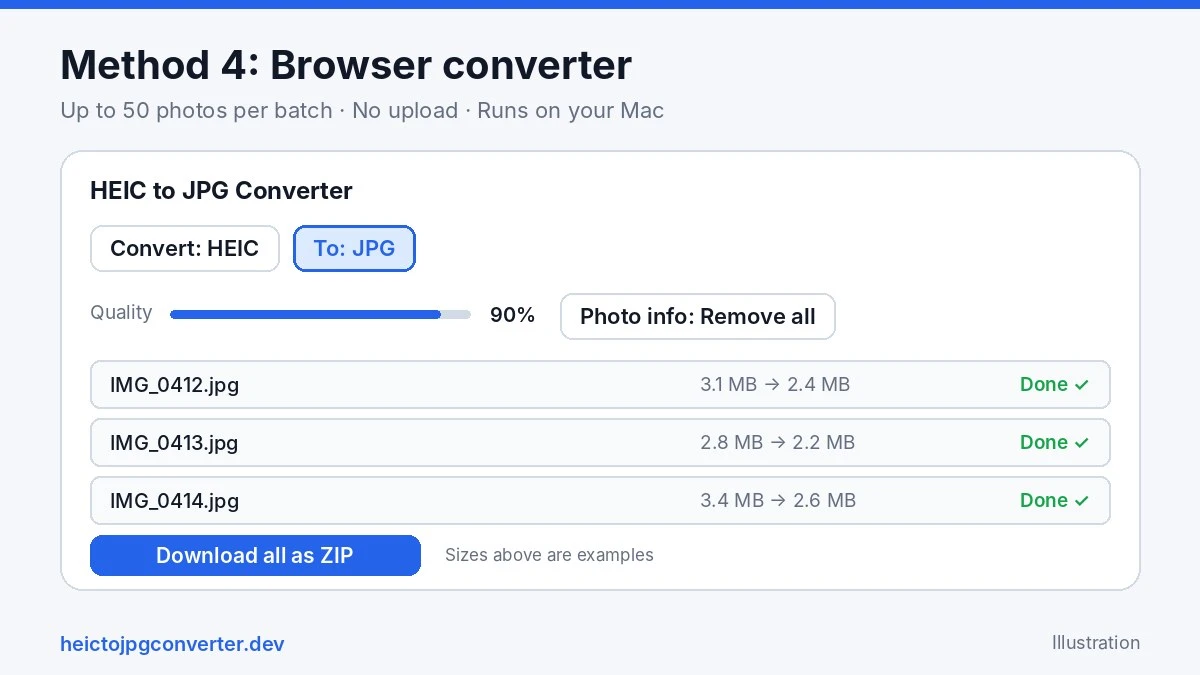
Want to check that nothing is uploaded? Open your browser’s developer tools, go to the Network tab, and convert a photo. You won’t see your image being sent anywhere.
Bonus: Convert HEIC to JPG with Terminal (sips)
macOS includes a command-line tool called sips. Open Terminal, go to the folder with your photos, and run this for one file:
sips -s format jpeg photo.heic --out photo.jpgTo convert every HEIC file in the folder:
for f in *.heic; do sips -s format jpeg "$f" --out "${f%.heic}.jpg"; doneIf your files end in capital letters (.HEIC), change .heic to .HEIC in the command.
How to convert many HEIC files at once on Mac
-
- A folder of photos: use the Finder Quick Action (Method 2).
-
- Batches with quality, size, and location control: use the browser converter (up to 50 per batch, no daily limit).
-
- Hundreds of files: use the Terminal loop above.
Tip: convert one photo first and check the result before you run a big batch.
Quality, file size, and location data
JPG is a lossy format, so a conversion is never perfectly lossless. At around 90% quality the difference is hard to see. JPG files are usually larger than the HEIC originals, because HEIC compresses more efficiently. To shrink a JPG, lower the quality or reduce the size.
Photos also carry hidden details such as GPS location, date, and camera model. In the Finder Quick Action you control this with Preserve Metadata. In our converter you choose Remove all, Keep, no GPS, or Keep all. If you plan to post photos online, remove the location first.
Stop getting HEIC photos from your iPhone
On your iPhone, go to Settings → Camera → Formats → Most Compatible to save new photos as JPG. If you prefer to keep HEIC on the phone, set Settings → Photos → Transfer to Mac or PC to Automatic, and iOS sends a compatible format when you transfer photos to your Mac.
Troubleshooting
-
- The HEIC file opens in the wrong app: Control-click it and choose Open With → Preview.
-
- You don’t see “Convert Image” in Quick Actions: the menu varies by macOS version. Use Preview, the Photos app, or the browser converter instead.
-
- The JPG is much bigger than the HEIC: this is normal. Lower the quality or choose a smaller size.
-
- The Terminal loop does nothing: check whether your files end in
.HEIC(capital letters) and match the command.
- The Terminal loop does nothing: check whether your files end in
-
- “Too large for this browser” in the converter: a very large image (roughly over 80 megapixels) can be refused. Use Preview or the Photos app for that file.
-
- A converted photo looks sideways: contact us with your Mac model and browser.
Frequently asked questions
How do I convert HEIC to JPG on a MacBook Air?
The same way as on any other Mac. Use Preview for a single photo, the Finder Quick Action or Photos app for several, or the browser converter for batches. MacBook Air, MacBook Pro, iMac, and Mac mini all work the same.
Can I convert HEIC to JPG on Mac for free?
Yes. Preview, Quick Actions, the Photos app, and Terminal are built into macOS, and our browser converter is free with no signup and no watermark.
How do I convert HEIC to JPG on Mac in bulk?
Select the files in Finder and use Quick Actions → Convert Image, or drop up to 50 photos at a time into the browser converter and download them as a ZIP. For hundreds of files, use the Terminal loop above.
Does converting HEIC to JPG on Mac reduce quality?
Slightly. JPG is lossy, so any conversion re-encodes the image. Use a high quality setting (around 90% or more) and keep your original HEIC files if you may need them later.
Is it safe to convert HEIC to JPG online?
It depends on the site. Many online converters upload your photos to a server. Our converter runs in your browser and never receives your files, and you can confirm that in your browser’s Network tab.
Can I just rename a HEIC file to JPG?
No. Changing the extension doesn’t change the data inside, and many apps still can’t open the file. You need a real conversion, like the methods above.
More answers are on our HEIC to JPG FAQ page.
Convert your HEIC photos now
Need to convert HEIC to JPG right now? Use the free HEIC to JPG converter. It runs in your browser, with no upload, no signup, and no watermark.