
To convert photos you already have, open a browser converter in Safari, choose your HEIC photos, and download JPGs. No app needed. To make your iPhone save future photos as JPG, go to Settings → Camera → Formats → Most Compatible.
Last updated: October 20, 2026
In this article: Two problems, two fixes · Convert in Safari · Stop saving HEIC · Transfer as JPG · Shortcuts · HEIC vs Most Compatible · Troubleshooting · FAQ
Two problems, two fixes
“Convert HEIC to JPG on iPhone” can mean two different things, and each has its own fix. Changing a setting does not touch photos you already took, and converting photos does not change what your camera saves next.
| What you need | Best fix |
|---|---|
| Convert photos you already took | Method 1: Convert in Safari (or Method 4: Shortcuts) |
| Save future photos as JPG | Method 2: Most Compatible |
| Send photos to a Mac or PC as JPG, but keep HEIC on your phone | Method 3: Transfer setting |
Method 1: Convert HEIC to JPG in Safari (no app)
Our HEIC to JPG converter is a web page, so there is nothing to install. It runs inside Safari or Chrome on your iPhone, and your photos are converted on your phone and never uploaded.
-
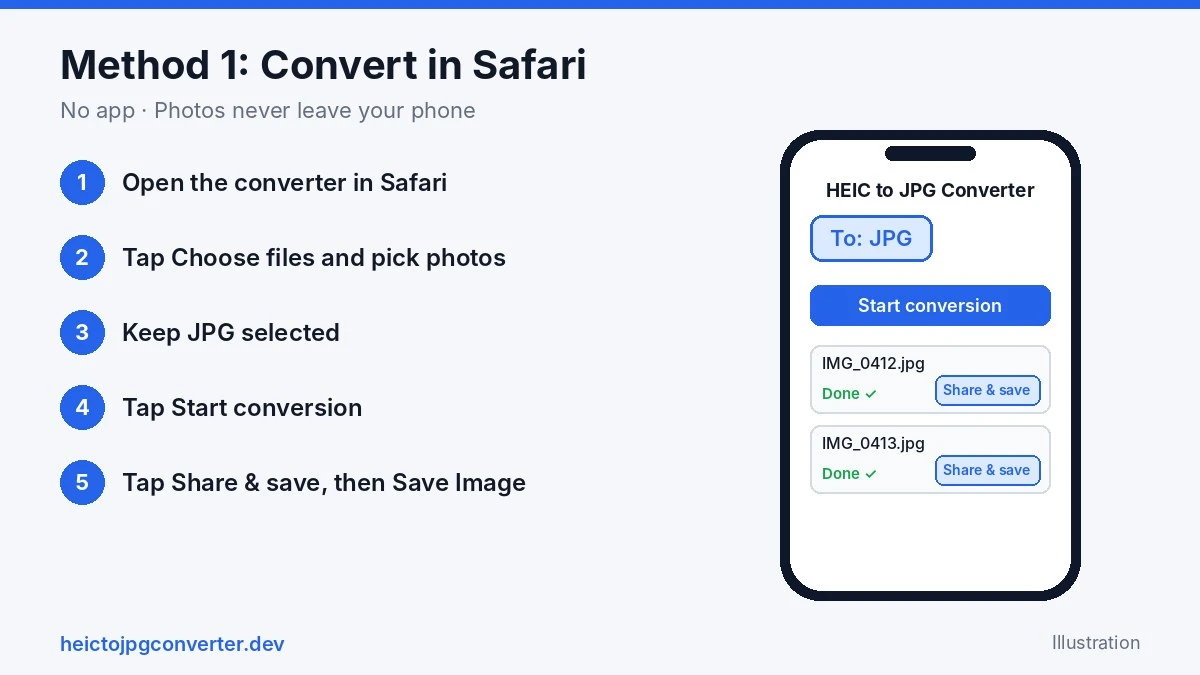
- Open the HEIC to JPG converter in Safari.
-
- Tap Choose files and select your HEIC photos. You can add up to 50 photos per batch.
-
- Keep JPG selected. Optionally change the Quality slider (default 90%) or the Photo info (EXIF) option.
-
- Tap Start conversion.
-
- Save the results. On iPhone and iPad the page shows a Share & save (or Open & save) button for each photo. Tap it, then choose Save Image or Save to Files.
About location data: by default the converter removes all photo info (GPS location, camera, date). If you want to keep the camera and date but not the location, choose Keep, no GPS. Keeping photo info works with JPG output only.
Method 2: Stop saving photos as HEIC
-
- Open Settings.
-
- Tap Camera, then Formats.
-
- Choose Most Compatible.
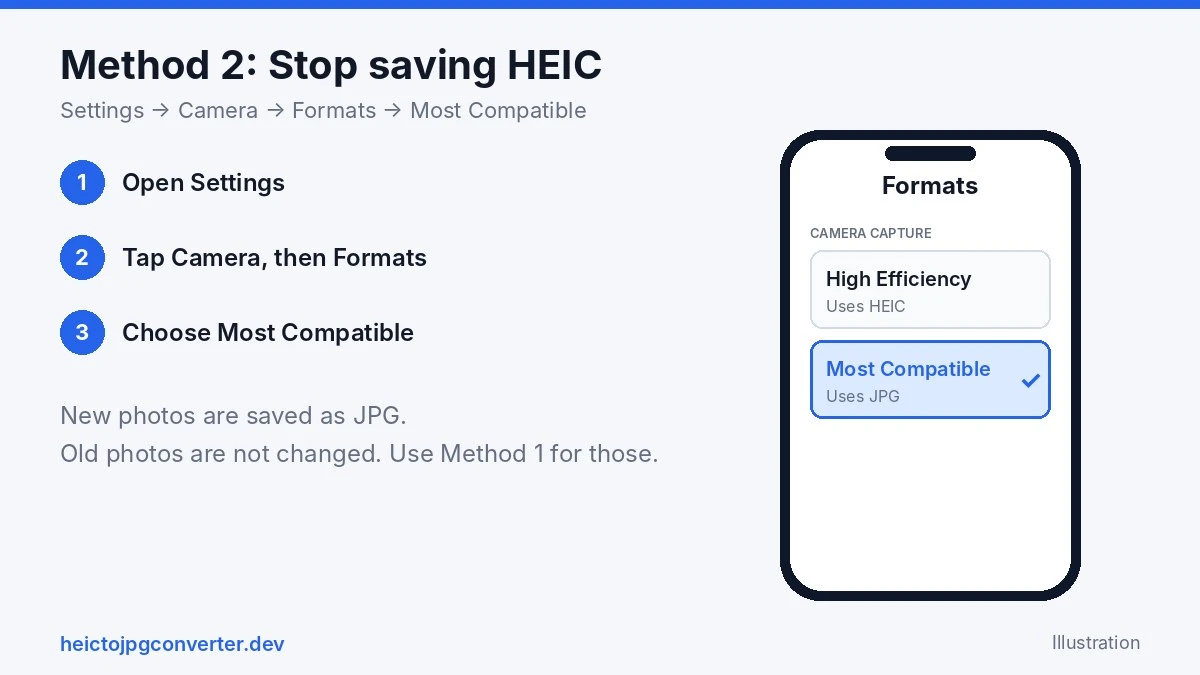
From now on, new photos are saved as JPG. This does not convert photos you already took. For those, use Method 1.
Method 3: Transfer photos to a Mac or PC as JPG
If you like HEIC’s small file size on your phone but need JPGs on your computer, let iOS convert them during the transfer:
-
- Open Settings → Photos.
-
- Scroll to the bottom and find Transfer to Mac or PC.
-
- Choose Automatic. Your iPhone keeps HEIC but sends a compatible format when it can.
If you need to convert photos that are already on a Mac, see how to convert HEIC to JPG on Mac.
Method 4: Convert with the Shortcuts app
The Shortcuts app on your iPhone has a Convert Image action that can turn photos into JPEG. This takes a few minutes to set up, but you can reuse it every time.
-
- Open Shortcuts and tap + to make a new shortcut.
-
- Add the Select Photos action and turn on Select Multiple.
-
- Add Convert Image and set the format to JPEG.
-
- Add Save to Photo Album (or Save File) and run the shortcut.
Action names can change between iOS versions. If you don’t see one of them, use Method 1 instead.
HEIC vs “Most Compatible”: which should you keep?
| High Efficiency (HEIC) | Most Compatible (JPG) | |
|---|---|---|
| File size | Roughly half | Larger |
| Phone storage | Uses less | Uses more |
| Opens everywhere | No (many Windows apps, websites, and older devices can’t open it) | Yes |
| Best for | Saving space on your phone | Sharing and uploading often |
Not sure? Keep HEIC on the phone and convert only the photos you need to share. That gives you smaller storage use and JPGs when you need them.
Troubleshooting
-
- The download doesn’t start: iPhone Safari can block automatic downloads. Tap the Share & save or Open & save button next to the photo instead.
-
- “This image is too large for this browser”: on iPhone and iPad, very large HEIC files (roughly over 50 megapixels) are refused. Large panoramas can hit this limit. Convert them on a computer instead.
-
- The JPG looks slightly smaller than the original: on iPhone and iPad, output above about 16.7 megapixels may be scaled down a little, and the page shows a notice when it happens.
-
- “Conversion timed out” or “Engine failed to load”: reload the page and try again, with fewer photos at a time.
-
- The photo is already a JPG: nothing to convert. Pick only HEIC files, or use Auto-detect in the Convert menu.
Frequently asked questions
How do I convert HEIC to JPG on iPhone without an app?
Open a browser converter such as our HEIC to JPG converter in Safari, choose your photos, and save the JPGs. It runs as a web page, so nothing is installed.
Does this work on iPad too?
Yes. The steps are the same on iPad, and the Settings → Camera → Formats option works there too.
Does converting reduce photo quality?
Slightly. JPG is lossy, so every conversion re-encodes the photo. At around 90% quality the difference is hard to see. Keep your original HEIC photos if you may want them later.
How do I remove location data from iPhone photos?
In our converter, leave Photo info (EXIF) on Remove all, which strips GPS, camera details, and date. Choose Keep, no GPS to keep everything except the location.
What happens to Live Photos?
You get the still image only. The short video part of a Live Photo isn’t included in the JPG.
I’m sending photos to a Windows PC. Do I need to convert them?
Often yes. Many Windows apps can’t open HEIC without extra software. Convert to JPG first, or use the Transfer to Mac or PC setting in Method 3.
More answers are on our HEIC to JPG FAQ page.
Convert your iPhone photos now
Open the free HEIC to JPG converter in Safari. No app, no signup, no watermark, and your photos stay on your phone.