iPhones have saved photos as HEIC by default since iOS 11, because HEIC keeps the same quality at roughly half the file size of a JPG. HEIC uses a video codec called HEVC, and Windows 10 and 11 don’t include everything they need to read it.
That’s why you may see blank thumbnails, a “We can’t open this file” message in the Photos app, or an upload form that rejects the photo. Converting the file to JPG fixes all of these, because JPG opens on every version of Windows and almost every website.
Method 1: Convert HEIC to JPG in your browser (no install)
Our HEIC to JPG converter runs in Edge, Chrome, or Firefox on Windows 10 and 11. Your photos are converted on your PC and never uploaded, and nothing needs to be installed, so it also works on locked-down work computers.
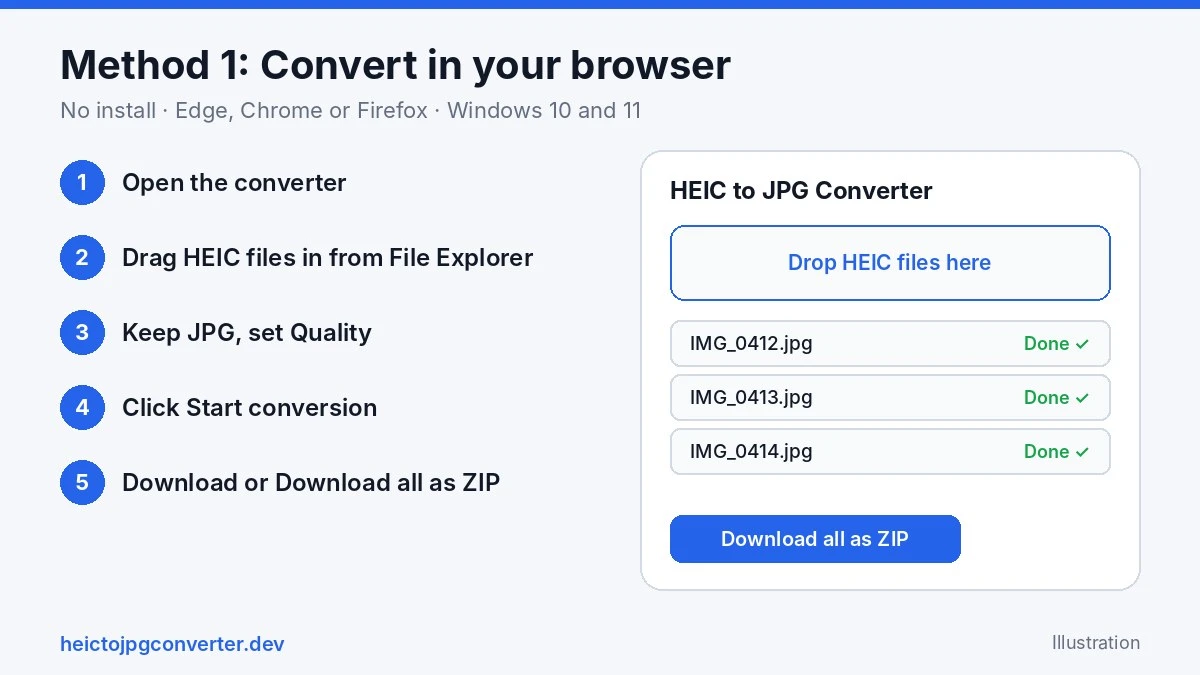
Drag your HEIC files from File Explorer onto the page, or click Choose files. You can add up to 50 photos per batch, up to 50 MB each.
Keep JPG selected. Set the Quality slider if you like (the default is 90%).
Choose Photo info (EXIF): Remove all (default), Keep, no GPS, or Keep all. Keeping photo info works with JPG output only.
Click Start conversion.
Download each JPG, or click Download all as ZIP and extract it in File Explorer.
Method 2: Install the Microsoft Store extensions
If you’d rather open HEIC photos directly in Windows apps such as Photos, install two extensions from the Microsoft Store. This lets Windows open HEIC files. It doesn’t turn them into JPGs by itself.
Open the Microsoft Store from the Start menu.
Search for HEIF Image Extensions and install it.
Search for HEVC Video Extensions and install it. Check the price shown in the Store before you buy, because it can vary by region and over time.
Restart your PC if HEIC photos still show blank thumbnails, then open a HEIC file again.
These steps are the same on Windows 10 and Windows 11. Because one of the extensions may cost money, many people prefer the free browser method above.
Method 3: Save as JPEG with Paint
Once the extensions from Method 2 are installed, you can convert a single photo with the Paint app that comes with Windows.
Right-click the HEIC file and choose Open with → Paint.
Click File → Save as → JPEG picture.
Choose a name and folder, then click Save.
Paint converts one photo at a time, so it’s slow for more than a few files.
Method 4: Free desktop tools
If you convert photos often on the same PC, a desktop program can batch-convert whole folders. Tools such as CopyTrans HEIC for Windows, XnConvert, and IrfanView are commonly used for this. HEIC support depends on the version and any plugins, so check each tool’s own page before installing. Download software only from the developer’s official website.
Get JPGs from your iPhone in the first place
If you move photos from an iPhone to a Windows PC, you can avoid HEIC altogether:
Keep HEIC on the phone, send a compatible format to the PC: go to Settings → Photos → Transfer to Mac or PC and choose Automatic.
Save JPG from now on: go to Settings → Camera → Formats → Most Compatible.
Thumbnails are blank: Windows can’t read the HEIC files. Convert them with Method 1, or install the extensions in Method 2.
“We can’t open this file” in Photos: same cause. After installing the extensions, restart your PC and try again.
Extensions installed but nothing changed: restart Windows, then reopen the file. If it still fails, use the browser converter.
“This image is too large for this browser”: a very large image was refused. Try it on its own, or use a desktop tool for that file.
“Conversion timed out” or “Engine failed to load”: reload the page and try again with fewer photos at a time.
Frequently asked questions
How do I convert HEIC to JPG on Windows 11 for free?
Use a free browser converter such as our HEIC to JPG converter. It needs no install, no signup, and adds no watermark.
Is it different on Windows 10 and Windows 11?
Not for the methods in this guide. The browser converter and the Microsoft Store extensions work the same way on both.
Can I convert many HEIC files at once on Windows?
Yes. Drop up to 50 photos at a time into the browser converter and download them as one ZIP. There is no daily limit, so you can run as many batches as you need.
Does converting keep my photo’s location and date?
It depends on the tool. In our converter, Remove all is the default and strips GPS, camera, and date. Choose Keep, no GPS to keep the camera and date but remove the location, or Keep all to keep everything (JPG output only).
Can I open HEIC on Windows without installing anything?
Windows can’t open them without the extensions, but you don’t have to install anything to use the photos. Convert them to JPG in your browser, and the JPGs open in any Windows app.
Will converting reduce the quality?
Slightly. JPG is lossy, so conversion re-encodes the photo. At around 90% quality the difference is hard to see. Keep your original HEIC files in case you need them later.
More answers are on our HEIC to JPG FAQ page.